To use the Batch Check Out function:
Open the Batch Check Out screen:
Select Batch Check Out from the Other section of the Full Menu.
Open the Full Menu (Click the icon on the left for the Full menu, or the breadcrumb link at the top right of the screen for Full Menu).
 OR
OR 
This will display the Full menu in a tabular form, with four sections, Registration, Status, Cashier and Other.
 OR
OR 
From the Other Section, select the Batch Check Out command.
 OR
OR 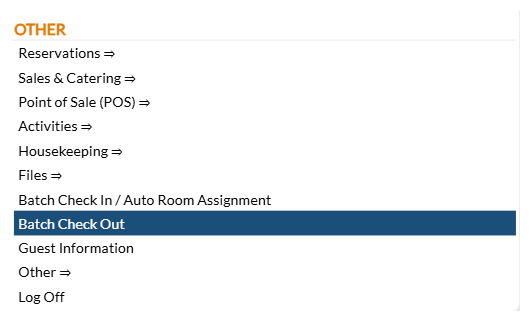
When selected, the Batch Check Out screen will open.
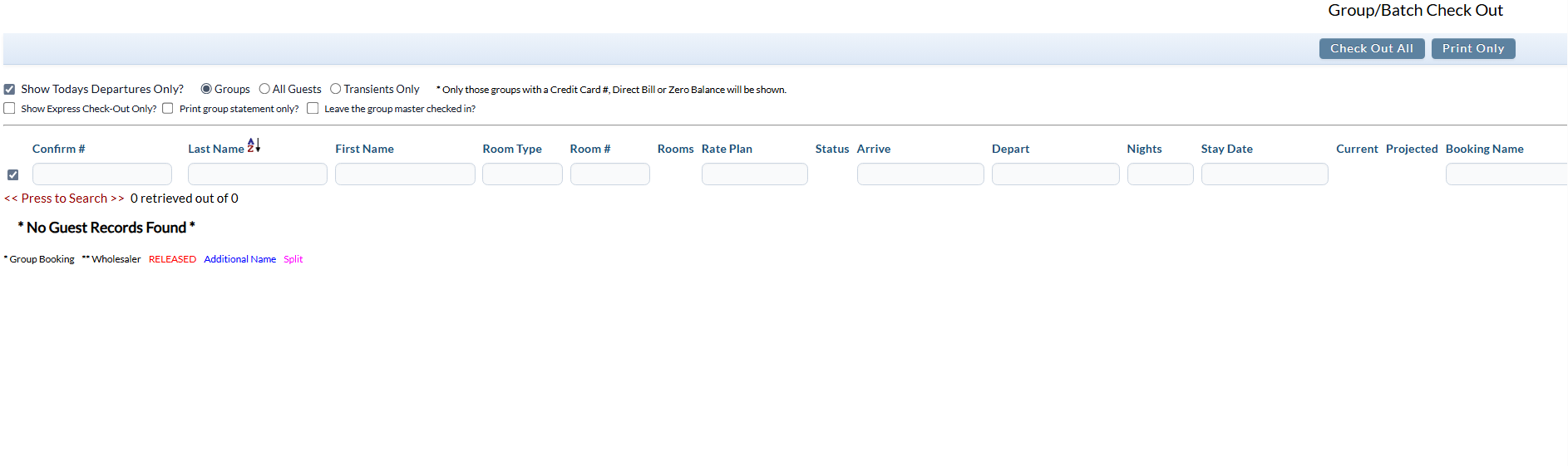
The Batch Check Out screen has several filters which may be applied to the stays currently in-house for display purposes. By default, the "Show Todays Departures Only?" option is checked, and the radial button Groups selected.
Show Todays Departures Only?: If this option is checked, the Batch Check Out screen will show ONLY the guests or groups that are scheduled to check out today. By default, this option is checked. To view ALL groups or guests currently in-house, this box should be unchecked.
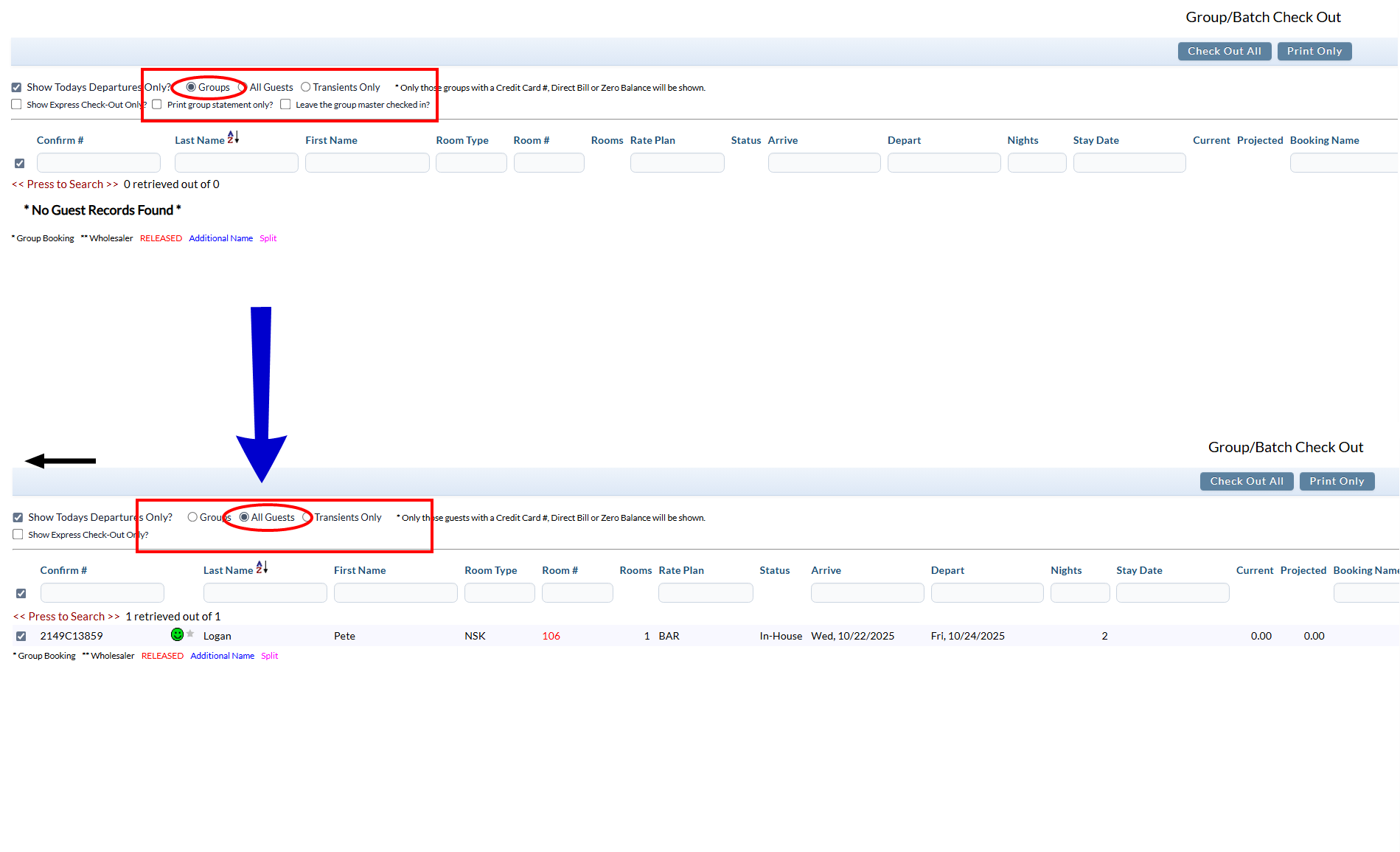
Select ONE of the radial button options Groups, All Guests or Transients: By default the option Groups is selected. To view all guest stays instead, select All Guests. Only one of these options may be selected.
Note: If the (default) Groups option is selected , check box options to Print group statement only? and Leave the group master checked in? will also be available. Selecting either the All Guests or Transient option instead will remove these check box options.
Print group statement only?: If this option is checked, the only statement to be printed for the stay will be the group, rather than the individual room statements.
Leave the group master checked in?: If this option is checked, the group master for the booking will NOT be checked out.
Show Express Check-Out Only?: If this option is checked, the Batch Check Out screen will show ONLY the guests or groups that are utilizing the express check out function. The service is available if your room has been paid for in advance, or the hotel has the credit card details on file and the guest has authorized its use.
Select the desired filters (today's departures, group, all guests) and any additional filters needed based on departure date, booking name, etc.). The screen will automatically update with any selections made.
Note: The system shows all guest stays based on the filter criteria that have a valid credit card or direct bill number associated with the stay. If there is no credit card or direct bill number, the stay cannot be checked out using this screen as the stay balance cannot be zeroed out automatically and the stay must be manually checked out. The Batch Check Out process AUTOMATICALLY posts the relevant balance amounts and charges the cards on file or direct bill number associated with the stay, to give a zero balance on the folio. Your staff do not need to MANUALLY post payment. Once the folio has a zero balance, the system automatically checks out the folio.
Click the Check Out button to automatically check out the listed guest stays and to open the stay statements as separate pages on a new tab for printing purposes.
Note: By default, all records shown will be selected. You may de-select any record shown for inclusion in the batch checking out by un-checking the box next to the record, on the left of the entry. Only records which are selected will be automatically checked out. There is also an option to Select/De-select all records, to the left of the row of filter options on the screen, which you may also use. By default it is checked, selecting all records shown for checking out.

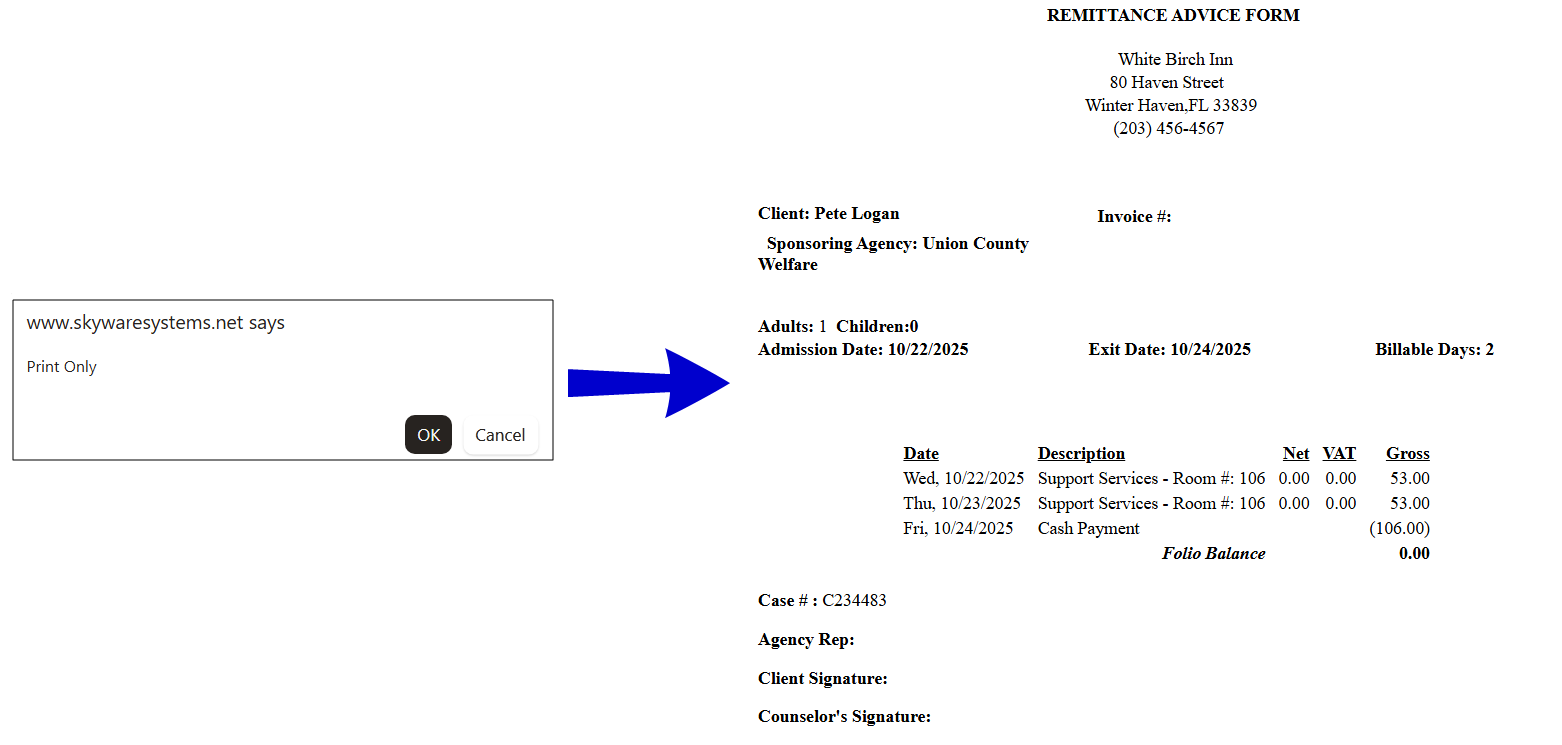
Note: You can use this screen to print out the stay statements for the selected stays WITHOUT checking out the stays by using the Print Only button. A pop-up window from Skyware will appear asking you to confirm the print only request; after confirmation the statements for the selected stays will open in a new tab allowing them to be printed out.